AI & Automation
Automatically Log Payments from Bank Notifications in Lode
On iOS 27, Lode can read the payment notifications your bank already sends and log each one — amount, merchant, and whether the money came in or went out — without you opening the app. The automation comes ready-made.
On iOS 27, Shortcuts can run an automation the moment an app sends you a notification. Lode uses that with its Log Bank Notification action: it reads the push your bank already sends — the amount, the merchant, and which way the money went — and logs it in Lode without you opening the app. Money that comes in is logged as income.
Bank notifications or Apple Pay?
Lode has two automations that log payments for you. They differ in what they cover:
Bank notifications — every payment the bank pushes: physical card, online, transfers — and income too. Set up once per bank. Needs
iOS 27and the bank's notifications turned on. Reads the bank's own wording, so check the first few entries if your bank is an unusual one.Apple Pay — tap-to-pay purchases only, with the exact amount and merchant straight from Wallet. Set up once per card. Works on
iOS 18and later.
Use one per card. Running both for the same card logs every tap-to-pay purchase twice.
Requirements
iPhone or iPad with
iOS 27or later — the Notification trigger is new in iOS 27, so there is no manual setup for earlier versionsLodeinstalled, with at least one accountYour bank's app installed, with its payment notifications turned on — real notifications, not just badges
Setup
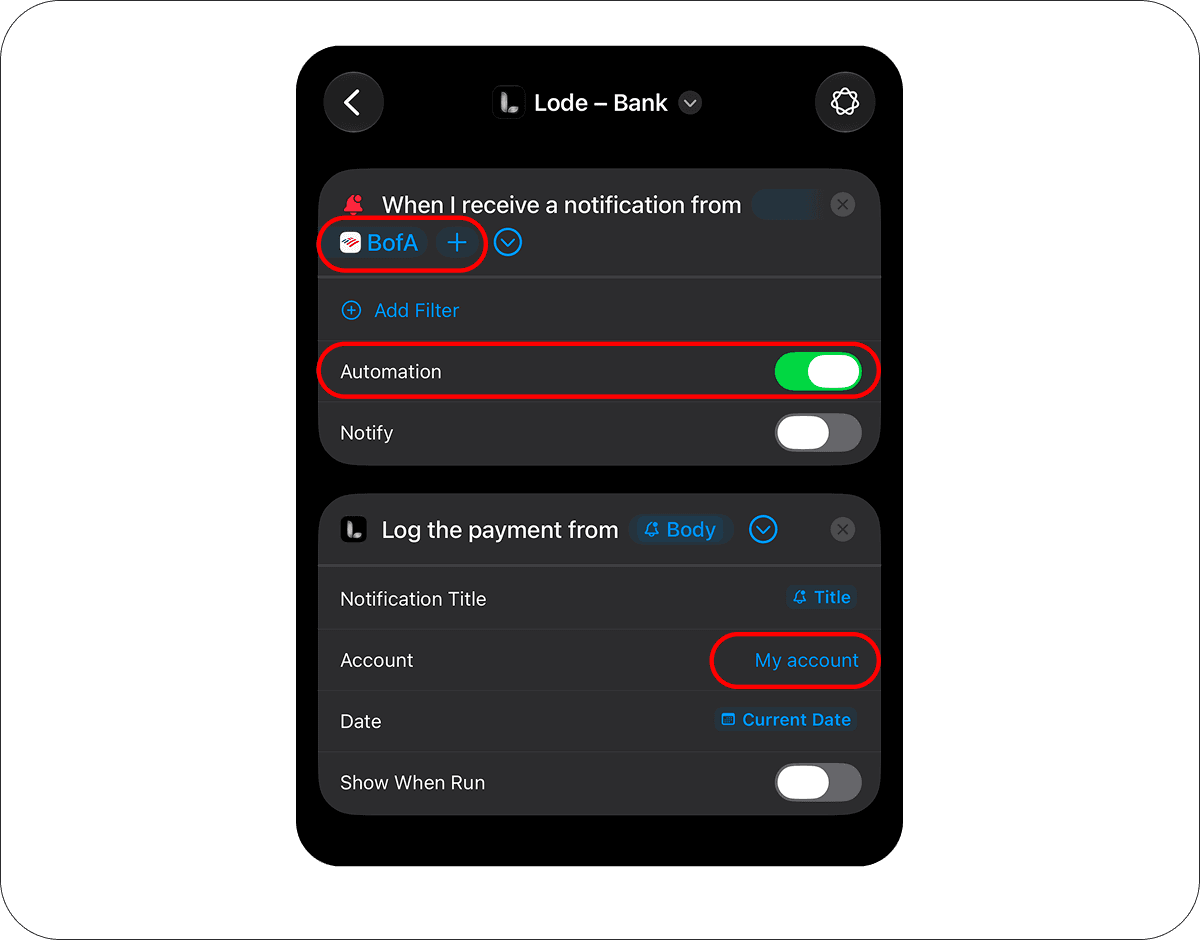
The automation comes ready-made. The one thing it cannot carry is your bank, so that is the one thing you choose. You can also open this straight from the app: Settings → Automation, the Bank Notifications segment.
Open
Lode — Bankon your iPhone and tapAdd Shortcut. In the app, this is theDownload the Automationbutton.Open the new automation — in
Shortcutsit sits underLibrary → Automation, in theFinish Setting Upsection. In the trigger at the top, tapAppand choose your bank's app — the one that sends you payment notifications.It arrives switched off. Tap the trigger's chevron and turn
Automationon. LeaveNotifyoff.If you keep several accounts in Lode, open the Lode action and set
Accountto the account this bank's card belongs to. With a single account it is picked automatically.
That's all. Body and Title are already passed to Lode and Show When Run is already off — the automation stays silent, and Lode's own notification is what you see after each payment.
More than one bank? Download it once per bank and pick that bank's app in each copy.
Building it by hand
If you'd rather assemble it yourself:
In
Shortcuts, tap+to create a new shortcut. If it offers to describe a shortcut, skip that — add the actions yourself.Add the trigger
When I receive a notification fromand pick your bank's app. In its options, turnAutomationon andNotifyoff.Add Lode's
Log Bank Notificationaction.Tap its
Notification Textfield →Select Variable→Notification, then tap the token and chooseBody. Expand the action and setNotification Titlethe same way, choosingTitle.Set
Accountif you keep several, turnShow When Runoff, and tap the back arrow to save.
How it works
Every time your bank sends a notification:
The automation runs and hands the notification's title and text to Lode.
Lode reads the amount, the currency, the merchant or the other party, and whether the money came in or went out.
Purchases and payments become expenses under the merchant. Lode picks the closest category from your own list, the same way the Apple Pay automation does.
Salary, refunds, interest and deposits become income.
Money to or from a person — "You sent $500 to John Doe", "Maria sent you $42" — goes to
Transfers to PeopleorTransfers from People: a friend paying you back for dinner is not earnings, and paying a friend is not groceries.Amounts in another currency are converted to the account's currency at the current rate. A bare
$,¥orRsis read as the account's own dollar, yen or rupee when it has one, and as USD, JPY or INR otherwise.Lode saves the transaction to the account you selected and posts its own notification.
What is ignored, on purpose
Not every bank notification is a payment. Lode skips these without logging anything:
Declined payments
One-time codes and fraud checks — "Is this you? Reply YES"
Reminders — "payment of $250 is due", "will be charged"
A transfer that is still pending. The bank says again when it goes through, and that one is logged.
The card bill being paid, and moves between your own accounts
Anything about the account rather than money: a credit-limit change, a dispute, points, a sign-in, a card on its way, offers with a figure in them, balances and statements
Notifications
A silent automation has no screen of its own, so Lode's notification is the only thing you see. It reports the account, the amount, the merchant and the category it chose, and tapping it opens that exact transaction.
It also tells you when a payment was not saved — a text Lode could not read, or a cross-currency payment once the free monthly conversions are used up. Without notifications those failures are invisible and your ledger is quietly wrong, so allow them when Lode asks, or turn them on in Settings → Automation.
Privacy
The notification text stays on your device. To pick a category, only the merchant name is sent to the AI, under the Lode AI consent you have already given. If the text cannot be read at all, it is sent once with the card number blanked out.
Known limits
Two identical purchases within two minutes — same store, same amount — collapse into one. That is the guard against a bank sending the same push twice; two coffees a few minutes apart are still two.
Two notifications within a second. Shortcuts drops a notification that arrives within about a second of the previous run starting. Pushes a few seconds apart all run, one after another.
An unfamiliar bank. Lode is tuned to real notification wording from banks in the US, UK, EU, Czechia, Russia, Ukraine, India, Kazakhstan and Georgia. A bank that writes its pushes differently will usually still yield the amount; the merchant may come out partial, and the category will follow. Check the first few entries.
Offline. The category matcher needs the network. When it is unreachable, the merchant name is matched against your categories directly, and otherwise the payment lands in your catch-all category.
Other currencies. On the free plan a cross-currency payment uses your monthly free conversions — once they're used up, the transaction isn't saved until you upgrade to Premium or use an account in the card's currency.
Troubleshooting
Nothing happens
An imported automation is switched off until you turn it on. Open
Library → Automationin Shortcuts and check its switch — and that your bank's app is chosen in the trigger.Check the bank app's notifications in iOS Settings: they must be delivered as notifications, not only as badges.
Test with a purchase. A balance notice or a promo is ignored by design.
Unlock your iPhone. Locked, the automation still runs, but it can take longer.
The wrong account is used
Open the Lode action and set
Accountto the right account. Left empty, Lode uses the first active account.
The wrong category is used
Lode chooses from your own categories based on the merchant name and never invents one. Rename categories to be clearer if similar merchants keep landing in the wrong place.
The amount or currency is wrong
Check that the selected
Accountuses the currency you expect for this card — a bare$is read against it.If your bank writes amounts in an unusual way, send us the notification text with the card number removed, and we'll add the format.
A payment was logged twice
You are probably running the Apple Pay automation for the same card. Keep one per card.
Questions? Reach out — we're happy to help.