Getting Started
Shared Accounts
Share an account with a partner, family member, or roommate and manage transactions together in real time.
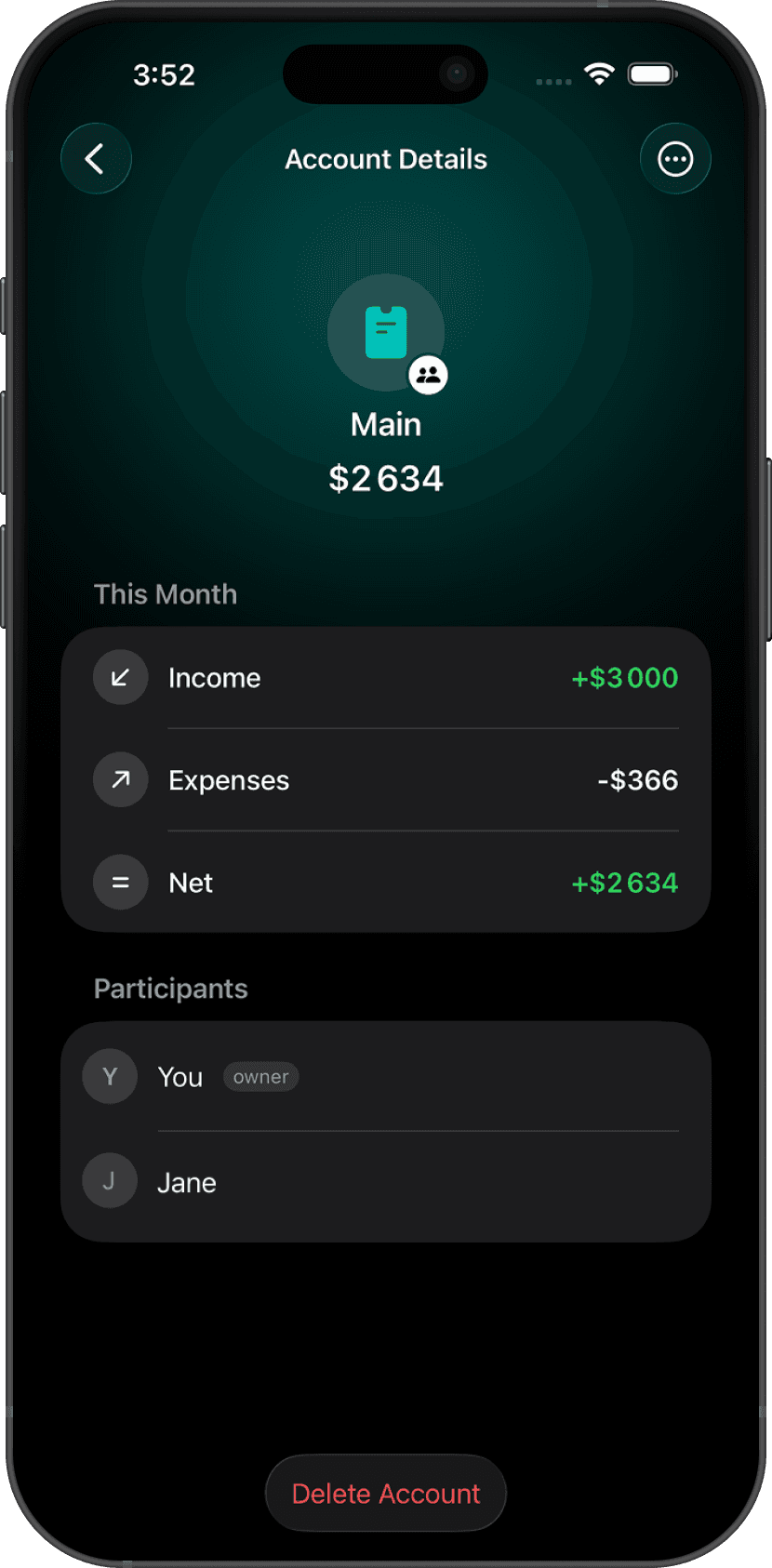
Shared accounts let you manage finances together with a partner, family member, or roommate. Everyone sees the same transactions in real time.
How to share an account
Open the account you want to share — tap it on the Dashboard, or in
Settings → AccountsTap the menu in the top-right corner and choose
Share AccountSend the invite link to the person you want to add
The invite is sent via iCloud — the recipient needs to have Lode installed and be signed into iCloud.
Joining a shared account
Open the invite link on your device. Lode will ask you to confirm — tap Accept, and the shared account will appear alongside your personal ones.
What everyone sees
Once an account is shared, all participants see the same transactions, bills, and balance. Any transaction added by one person is instantly visible to others.
You can always tell who added a transaction — the author's name appears next to each entry from other participants.
What stays personal
Budgets are not shared. Each person sets their own budget limits independently. Your budgets are visible only to you.
Notifications
When someone else adds a transaction to a shared account, you'll get a notification. You can turn this off in Settings → Notifications → Shared Account Activity.
Leaving a shared account
As a participant: open the account, tap the menu in the top-right corner, and choose Leave Account. The account will be removed from your Lode. Your personal data is not affected.
As the owner: open the account's top-right menu and tap Stop Sharing. Lode will save a full copy of all transactions to your personal storage before revoking access for other participants. No data is lost.
Questions? Reach out — we're happy to help.